Instagram is built for scrolling, not for saving. The bookmark icon only keeps a post inside the app, Stories disappear after 24 hours and profile pictures are shown as tiny circles you cannot even zoom into. If you want a real copy of a Reel, a carousel or a Story on your phone or computer, you need a downloader. This guide shows you exactly how to save every kind of Instagram content in the best possible quality, and how to do the same for Facebook.
What can you save from Instagram?
Our Instagram downloader supports every public content type:
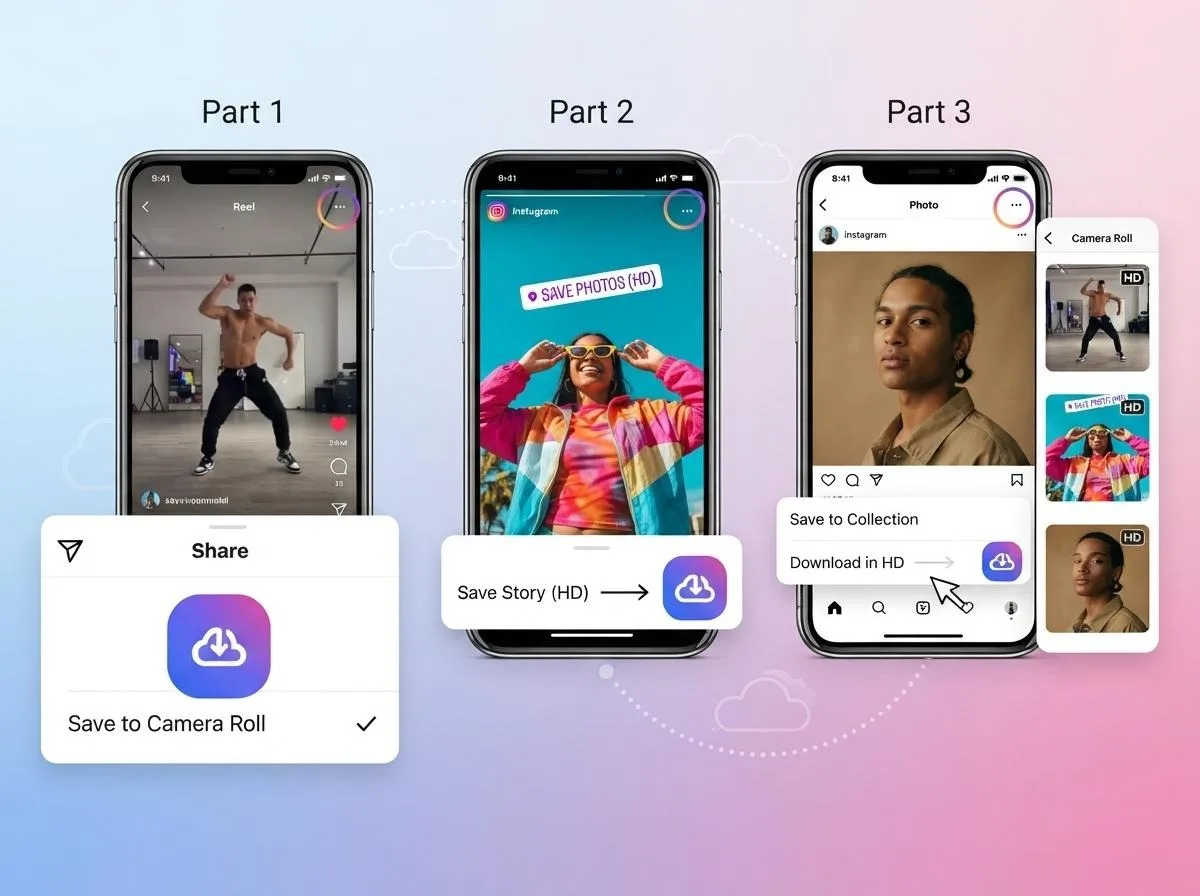
- Reels as HD MP4 videos with sound.
- Photos in their original upload resolution, usually 1080 pixels wide or more.
- Carousels (multi-photo and mixed photo/video posts), downloaded one by one or all at once.
- Stories and Highlights from public accounts, before they expire.
- Profile pictures in full size instead of the small circle shown in the app.
- Video posts and IGTV in the best quality available.
Content from private accounts cannot be downloaded. This is intentional and protects the privacy of people who chose not to share publicly.
How to download Instagram Reels
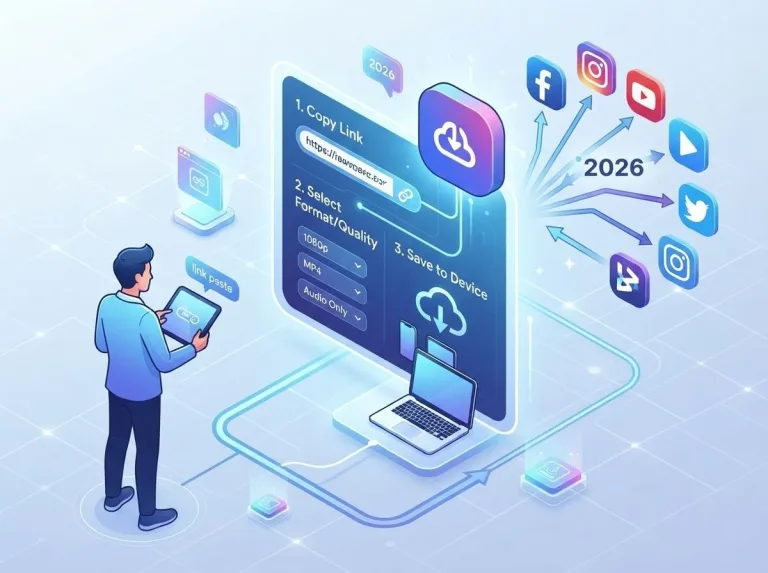
- Open the Reel in the Instagram app and tap the paper plane (Share) icon.
- Choose Copy link. On a computer, simply copy the address from the browser bar.
- Paste the link into the box below and wait a second while the Reel is analysed.
- Tap Download. The HD MP4 file is saved to your device.
Reels keep their vertical 9:16 format, so they look exactly like they do in the app. If you only want the sound of a Reel, download the video and run it through our Video to MP3 Converter, which extracts the audio right in your browser.
How to save Instagram photos and carousels
Single photos work exactly like Reels: copy the post link, paste it and download. For carousels you will see a preview of every slide. You can save the ones you like individually or download all of them in one go. Photos are delivered as JPG files in the highest resolution Instagram stores, which is usually much sharper than a screenshot.
Why not just take a screenshot? Screenshots capture the screen resolution, include interface elements and often add compression. A proper download gives you the original image without status bars, buttons or captions on top.
Need the image in another format or smaller? Use our Image Converter & Compressor to turn it into WebP or PNG and reduce its size without visible quality loss. Planning to repost it on another network? The Social Media Image Resizer crops it perfectly for Instagram, Facebook, X, LinkedIn, YouTube and Pinterest.
How to download Instagram Stories and Highlights
Stories are only visible for 24 hours, so timing matters. To save one:
- Open the account's profile and tap the Story (or a Highlight circle).
- Tap the three dots and choose Copy link, or copy the profile link if you want to browse all of their current Stories.
- Paste the link into the downloader and pick the Story you want.
Highlights are Stories that the owner pinned to their profile, so they stay available until the owner removes them. Both photo and video Stories are supported.
Good to know: the account owner is not notified when you download a public Story through our site.
How to view and download Instagram profile pictures in full size
Instagram only shows profile pictures as a small circle, and there is no way to zoom in inside the app. Our downloader fetches the full-resolution version. Just paste the profile link (for example instagram.com/username) and choose Profile picture. This is useful when you want to check whether an account is genuine or when you need your own profile photo back in good quality.
Doing the same on Facebook
Facebook and Instagram belong to the same company and work in similar ways. Our Facebook downloader saves:
- Public videos and Watch videos in HD and SD.
- Facebook Reels in vertical HD.
- Photos from public posts and albums.
- Public Stories, including photo Stories.
Copy the link from the Share menu (it may look like fb.watch/... or facebook.com/share/...), paste it into the box above and choose a quality.
Instagram formats and sizes explained
Knowing how Instagram stores media helps you understand what you will get after downloading. Each content type has its own shape and maximum resolution:
| Content | Aspect ratio | Typical resolution | File type |
|---|---|---|---|
| Reels | 9:16 (vertical) | 1080 x 1920 | MP4 |
| Stories | 9:16 (vertical) | 1080 x 1920 | MP4 or JPG |
| Square post | 1:1 | 1080 x 1080 | JPG or MP4 |
| Portrait post | 4:5 | 1080 x 1350 | JPG or MP4 |
| Landscape post | 1.91:1 | 1080 x 566 | JPG or MP4 |
| Profile picture | 1:1 (shown as a circle) | up to 320 x 320 or larger | JPG |
If you plan to reuse a downloaded image on a different network, the aspect ratio may not match. A Reel in 9:16 works perfectly for TikTok and YouTube Shorts, while a 4:5 portrait post needs cropping for a 16:9 YouTube thumbnail or a wide X header. The Social Media Image Resizer has presets for all of these, so you do not need to remember the numbers.
A simple backup routine for creators and brands
If you run an Instagram account, your posts are valuable work. Instagram can lock accounts, compress old uploads or remove posts after a report, and the built-in data export is slow and hard to browse. Many creators and social media managers keep their own archive with a simple routine:
- Download each Reel and post right after publishing with the Instagram downloader, so you always have the version that went live, including Instagram's final crop.
- Name files consistently, for example
2026-10-07_reel_product-launch.mp4, so they sort by date in any folder. - Save Stories and Highlights before they expire; they are often the hardest content to recover later.
- Keep a copy in the cloud (Google Drive, iCloud or Dropbox) as well as on your computer.
- Repurpose the best clips: extract the voice-over as MP3 with the Video to MP3 Converter, grab a cover frame with the Video Frame Grabber and post the video to TikTok or YouTube Shorts.
Agencies use the same workflow to build monthly reports and to collect user-generated content that customers have agreed to share. Always keep written permission when you reuse a customer's post in your own marketing.
Phone or computer: which is better?
Both work equally well, but each has advantages. On a phone you can copy a link straight from the Instagram app and the file lands where you will watch or share it. On a computer it is easier to save many posts in a row, rename files and organise them into folders. A practical mix is to collect links on your phone during the day (for example by sending them to yourself in a note) and download them in one session on your computer.
Where do the files go?
| Device | Default location | How to move it |
|---|---|---|
| iPhone / iPad | Files app > Downloads | Open the file, tap Share, choose Save Video or Save Image |
| Android | Download folder | Appears in Gallery or Google Photos automatically |
| Windows / Mac | Downloads folder | Change the folder in your browser settings |
Quality tips for the sharpest results
- Always use the link, never a screen recording. Screen recordings lose quality and capture notifications.
- Choose the highest quality offered. Instagram stores Reels in several resolutions; we list the best one first.
- Do not re-compress unnecessarily. Each time a video is re-encoded it loses detail. Only convert when you need a different format.
- Use Wi-Fi for long videos to avoid interrupted downloads and surprise data charges.
Troubleshooting Instagram downloads
"Content not found"
The post may have been deleted, archived or made private, or the account may have blocked visitors from your region. Check whether the link opens in a private browser window without logging in.
The Story is gone
Stories expire after 24 hours. If the owner did not add it to a Highlight, it can no longer be downloaded by anyone.
Only the first photo of a carousel appears
Make sure you copied the link of the post itself, not a link to a single image. Refresh the page and paste the link again.
Too many requests
Instagram limits how often its content can be accessed. If you see a temporary error, wait a minute and try again.
Respect creators and privacy
Downloading for personal use, such as keeping a recipe, a workout or a memory, is how most people use these tools. Reposting someone else's Reel or photo without permission, removing credit or using it in ads can break copyright law and Instagram's terms. If you repost, ask first and tag the original creator. And never use downloaded profile pictures to impersonate anyone.
Summary
Saving Instagram content is simple once you know the trick: copy the link, paste it into the Instagram downloader and download. Reels, photos, carousels, Stories, Highlights and profile pictures all work, and the Facebook downloader covers videos, Reels, photos and Stories the same way. For everything else, from YouTube to TikTok, read our complete guide to downloading social media videos.