Sometimes you do not need the video at all, only the sound. A podcast you want to listen to on a walk, a lecture you want to replay on the train, a song from a TikTok trend or a voice clip you want as your ringtone. Converting video to MP3 used to mean installing questionable software. Today you can do it entirely online, for free, in a few seconds. This guide explains how to convert videos to MP3, which bitrate to choose and how to turn any part of a song into a ringtone for iPhone or Android.
Two ways to get MP3 audio
There are two situations, and we have a free tool for each:
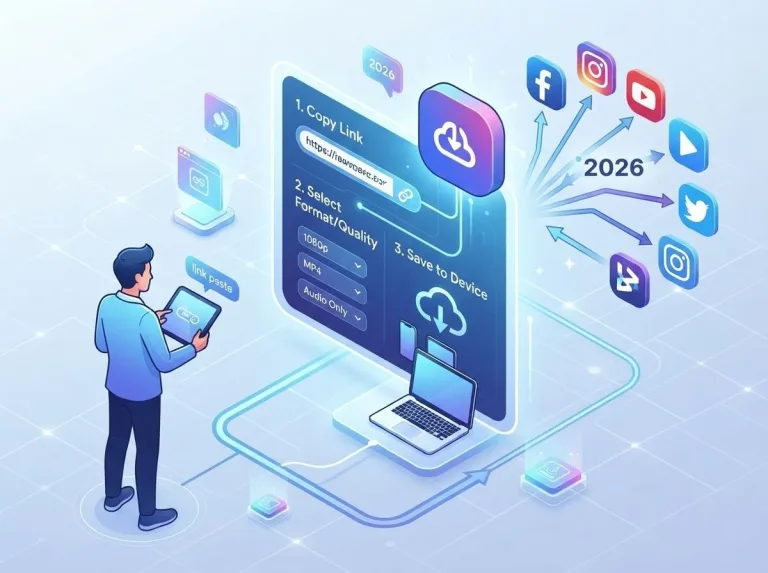
- The video is online (YouTube, TikTok, Instagram, Facebook or X). Paste the link into a downloader and pick the MP3 option. The audio is extracted on our side and sent to you as an MP3 file.
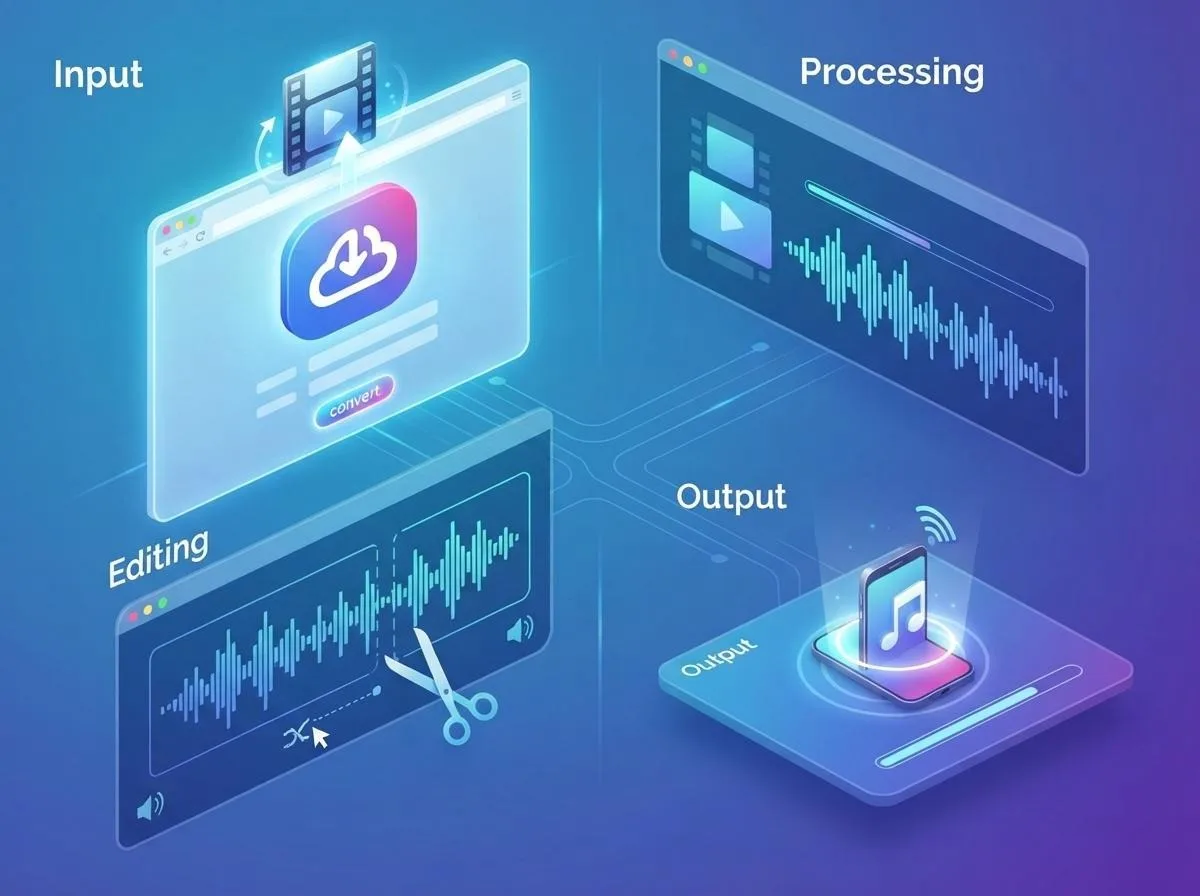
- The video is already on your device (a screen recording, a clip from your camera, a downloaded MP4). Open the Video to MP3 Converter, select the file and convert it. This runs inside your browser, so the file is never uploaded anywhere.
Method 1: Convert an online video to MP3
This works best for YouTube and TikTok, the two platforms people convert most often:
- Copy the link of the video or Short.
- Paste it into the box below.
- Open the MP3 tab and choose a bitrate.
- Tap Download and the MP3 is saved to your device.
On TikTok this is the easiest way to save a trending sound. On YouTube it is ideal for podcasts, interviews, audiobooks in the public domain and music you have the rights to.
Method 2: Convert a video file on your device
If you already have the video, you do not need to upload it anywhere:
- Open the Video to MP3 Converter.
- Drag the file onto the page or tap to choose it. MP4, MOV, WebM, MKV and most other formats work.
- Choose the bitrate and press Convert.
- Download the finished MP3.
Because the conversion uses your device's processor, it is private and works even with large files. Longer videos simply take a little more time.
Which MP3 bitrate should you choose?
Bitrate decides the balance between sound quality and file size. Higher is better but larger:
| Bitrate | Quality | Size per minute | Best for |
|---|---|---|---|
| 320 kbps | Best | about 2.4 MB | Music on good headphones or speakers |
| 192 kbps | Very good | about 1.4 MB | Everyday music listening, ringtones |
| 128 kbps | Good | about 1 MB | Podcasts, background music |
| 64 kbps | Voice | about 0.5 MB | Lectures, audiobooks, voice notes |
One important rule: converting can never improve the original sound. If the source audio was low quality, choosing 320 kbps only makes the file larger. For speech, 128 kbps or even 64 kbps is plenty.
How to make a ringtone from any song
Once you have an MP3 (or any audio or video file), our Audio Cutter & Ringtone Maker lets you pick the exact part you want:
- Open the Audio Cutter and select your file.
- Drag the start and end handles to select the part you like. Use Play selection to hear it.
- Keep ringtones short: about 20 to 30 seconds works best.
- Choose the output quality and press Cut & download.
Setting the ringtone on Android
Move the MP3 into the Ringtones folder (or leave it in Downloads), then go to Settings > Sound > Phone ringtone and pick your file. On Samsung phones tap the + icon in the ringtone list to add a file from storage.
Setting the ringtone on iPhone
iPhones use the M4R format and need ringtones under 40 seconds. The easiest free method is Apple's GarageBand app: import the cut MP3, then use Share > Ringtone. GarageBand converts it and adds it directly to Settings > Sounds & Haptics > Ringtone.
More useful audio and video tricks
- Grab a still image: the Video Frame Grabber exports any frame of a video as a sharp PNG or JPG, perfect for cover art.
- Get the official cover: the YouTube Thumbnail Downloader saves a video's thumbnail in HD, which you can use as album art for personal playlists.
- Make it fit social media: resize that artwork with the Social Media Image Resizer before sharing.
MP3 or another audio format?
MP3 is the most compatible audio format in the world: every phone, car stereo, smart speaker and media player can play it. Other formats exist, and it helps to know when they make sense:
| Format | Strength | Weakness | Use it when |
|---|---|---|---|
| MP3 | Plays everywhere | Slightly larger than newer formats | You want maximum compatibility |
| M4A / AAC | Efficient, used by Apple and YouTube | Some older players lack support | You stay in the Apple ecosystem |
| OGG / Opus | Excellent quality at low bitrates | Limited support on iPhone and cars | Voice chats, web streaming |
| WAV | Uncompressed, lossless | Very large files | Professional editing only |
For almost everyone, MP3 at 192 kbps is the right default. It sounds very close to the original on normal headphones and keeps a three-minute song around 4 MB.
Build an offline podcast and lecture library
Many creators publish full podcast episodes, lectures and interviews on YouTube. Turning them into MP3 files gives you a library you can listen to anywhere, even without a signal:
- Collect the links of the episodes or lessons you want to keep, ideally from creators who allow offline listening.
- Paste each link into the YouTube downloader and choose MP3 at 64 or 128 kbps. Speech does not need a high bitrate, so a one-hour episode stays around 30 to 55 MB.
- Create a folder per show or course and name files with the episode number so they play in order.
- Copy the folder to your phone's music app, a podcast app that supports local files, or a USB stick for the car.
Students find this especially useful for revision: listening to a lecture again during a commute is one of the easiest ways to remember the material.
Pro tips for cutting audio
- Start on a beat. Ringtones and clips sound most natural when they start right at the beginning of a musical phrase or after a short silence. Use Play selection repeatedly and nudge the start handle until it feels right.
- Keep the strongest part. For songs, the chorus is usually the most recognisable moment; for speech, cut a complete sentence instead of stopping mid-word.
- Mind the length. Phone calls ring for about 25 to 30 seconds before voicemail, so longer ringtones are never heard in full. Notification sounds should be under 5 seconds.
- Avoid repeated conversions. Cut from the best original file you have. Converting an MP3 to MP3 again and again slowly reduces quality.
- Check the volume. A quiet intro can make a ringtone easy to miss. Pick a section that is loud from the first second.
The Audio Cutter accepts video files too, so you can cut a sound straight from a clip you downloaded with the TikTok downloader or the Instagram downloader, without converting it first.
Common questions
Is converting YouTube to MP3 legal?
It depends on what you convert and how you use it. Converting your own videos, public domain recordings, Creative Commons content or videos the owner allows you to save is fine. Converting copyrighted music to avoid paying for it is not. Streaming services are the right choice for commercial music.
Why does my MP3 sound quiet?
The volume depends on the original recording. Most music players have a volume normalisation option (often called Sound Check or Normalize volume) that evens out loudness between tracks.
Can I convert on a phone?
Yes. All of our tools work in mobile browsers on iPhone and Android. For very long videos, a computer will be faster because it has more processing power.
Are my files uploaded?
Not with the browser tools. The Video to MP3 Converter and the Audio Cutter process everything locally on your device. Only online links (for example a YouTube URL) are processed on our servers, and the result is streamed to you without being stored.
Can I convert TikTok sounds to MP3?
Yes. Paste the TikTok video link into the TikTok downloader and choose MP3. You get the audio that plays in the video, which is the quickest way to save an original sound, a voice-over or a short music snippet you are allowed to use.
How long can the video be?
There is no fixed limit for normal use. Online links of several hours work, although very long videos take longer to prepare. With the browser converter, the limit depends on your device's memory; most phones handle videos of up to an hour without problems.
Wrapping up
Getting MP3 audio from a video takes less than a minute: paste a link into the YouTube or TikTok downloader, or convert a file with the Video to MP3 Converter. Then use the Audio Cutter to create the perfect ringtone. Explore all of our free media tools, and if you want to learn more about saving videos, read our complete social media download guide.